| Firstname | Lastname | Age | Select |
|---|---|---|---|
| Jill | Smith | 50 | |
| Eve | Jackson | 94 | |
| John | Doe | 80 |
Sunday, 24 June 2018

Handling Spinner in Selenium
Handling Spinner In Selenium:
To handle Spinner in selenium we have to use Synchronization concept with the help of wait.
It is always best to use Explicit Wait on each control. so we have been using Explicit Wait in our below example.
We are handling Spinner from Spinner Link this link. Click on it.
Basically above link contains two buttons-
1- Show Spinner
2- Hide Spinner
Show Spinner: When we click "Show Spinner" button then spinner is moving with 5-second timeout once 5-Second elapsed data will be loaded in tabular format.
Hide Spinner: When we click on "Hide Spinner" button It will hide the Spinner as well as tabular data (if tabular data is present/already loaded on page)
Intention of having such scenario/example is correlating with real time scenario- where when user click on any button then data is fetching from database in mean time spinner is running on page and block the page activity once the data is ready spinner will disappear from screen.
Explicit Wait:
- WebdriverWait
- FluentWait
In example we have passed Webdriver object and By class object which is the locator path to spinner to function - waitTillSpinnerDisable(WebDriver driver, By by)
apply(): We have override apply method which will return either true or false. In example it will return TRUE in case of spinner is disappear (i.e. style.display="none") else it will return FALSE in case of timeout or style.display="block".
Once the Spinner is disappear it will load the data in tabular format and we have to parse the table where we need to select check on the basis of if Name & Surname gets matched with tabular data where we passed Name & Surname at execution time.
Execution Steps:
- Load the page
- Click on Show Spinner button
- Pass the driver object and locator for Spinner to waitTillSpinnerDisappear method
- Check the method return type if above method waitTillSpinnerDisappear return true then
- Parse the table with condition Name & Surname gets matched if match then select respective check box.
Download:
Download Spinner.html file form below link :-
or
Refer to page-
http://avinashpandeblogsonseleniumautomation.blogspot.com/2018/06/spinner-to-handle-in-selenium.html
Java Code:
Sunday, 17 June 2018
Handling Dynamic Web Tables Using Selenium
Handling Dynamic Web Tables Using Selenium by using XPATH
In below example we have consider Application Under Test from url as- https://www.redmine.org/issues .
Where this url/application contains issues reported by users etc.. All the reported issues are in
tabular format. In below example we have used xpath with multiple condition in a single xpath.
Also we have passed java variable as a argument to xpath at runtime.
Here, we have to pass issueId and status as a argument below code will check issueId and respective
status code is matched or not with table data if not it will click on next page and searched
the given condition with table data it will search until it will find at least one of the record.
Once the record found then execution will stop.
Screenshot of the Page:

Java Code:
package seleniumCode; import java.util.List; import java.util.concurrent.TimeUnit; import org.openqa.selenium.By; import org.openqa.selenium.WebDriver; import org.openqa.selenium.WebElement; import org.openqa.selenium.firefox.FirefoxDriver; import org.openqa.selenium.interactions.Action; import org.openqa.selenium.interactions.Actions; import org.openqa.selenium.support.ui.ExpectedConditions; import org.openqa.selenium.support.ui.WebDriverWait; public class WebTable { public static void main(String[] args) { WebDriver driver = null; List<WebElement> listWebElement = null; boolean flag = false; driver = new FirefoxDriver(); driver.manage().window().maximize(); driver.get("https://www.redmine.org/issues"); String issueId = "28232"; String status = "New"; driver.manage().timeouts().implicitlyWait(10, TimeUnit.SECONDS); do { listWebElement = driver.findElements(By.xpath("//table[@class='list issues'] //tr//a[text()='"+issueId+"']//ancestor::td//following-sibling:: td[text()='"+status+"']//preceding-sibling::td/input")); for (WebElement element : listWebElement) { System.out.println(element.getAttribute("value")); element.click(); flag = true; break; } if(flag==true) break; if(flag == false || listWebElement.size()==0) { //Page Down Actions ac = new Actions(driver); ac.moveToElement(driver.findElement(By.cssSelector("a.atom"))).build().perform(); try { Thread.sleep(2000); } catch (InterruptedException e) { // TODO Auto-generated catch block e.printStackTrace(); } driver.findElements(By.cssSelector("a.next")).get(0).click(); } }while(driver.findElements(By.cssSelector("a.next")).size()>0 || flag==false); } }References: https://www.redmine.org/issues
See Also:
1-Download file using Selenium webdriver with C#
2-Upload file in Selenium WebDriver in java using Robot Class
3-Implicit and explicit wait in selenium Webdriver
4-Upload File Using Selenium WebdDriver in Java using AutoIt
5-Upload a file using selenium web driver in c#
6-Upload a file using selenium web driver in c# using AutoIt
7-Taking Screen Shot of a page By using selenium Webdriver With NUnit and C#.Net in Visual Studio-2012.
Sunday, 13 March 2016
Handling web tables in Selenium Webdriver
Handling WebTables:
Handling Web tables is much more complex than any other element or control. Web Table is a collection of Rows and Columns. Information / Data is Stored in Rows and Columns combinations called as Cells.Web Tables:
A HTML Table contains following tags normally (case in-sensitive).- Table - Which indicates a table.
- tbody - Table body which contains TR and TDS / TH
- Tr - Table Rows indicates Rows in table.
- Td / Th - Table data / Table Header Indicates columns in respective Table rows.
Steps To Iterate over Table:
- Either find out the first web element (i.e. element1) to table tag or tbody tag by using either tagname, css selector or Xpath locator.
- Next by using that previous found element (in our case element1) we can find the number of rows under that table as a list of web element.
- Iterate over the list of rows and considering each row one by one we can find the number of columns(Td / Th) under each Table rows.
Example:
We will consider below table example to read each value from it's rows and columns.

HTML Code for Web Table:
<html>
<Head>
<title> I Am Title Tag </title>
</head>
<body>
<TABLE BORDER="3" BORDERCOLOR="#C000C0" BGCOLOR="#FFDDFF" WIDTH="500" CELLSPACING="1" CELLPADDING="3">
<CAPTION><FONT COLOR="#D000D0" SIZE="4"><B>NUMBERS 1-5 in VARIOUS LANGUAGES</B></FONT></CAPTION>
<TH WIDTH="5%"></TH>
<TH WIDTH="19%" BGCOLOR="#FFA0FF"><FONT SIZE="4"><U>English</U></FONT></TH>
<TH WIDTH="19%" BGCOLOR="#FFA0FF"><FONT SIZE="4"> <U>Español</U></FONT></TH>
<TH WIDTH="19%" BGCOLOR="#FFA0FF"><FONT SIZE="4"> <U>Français</U></FONT></TH>
<TH WIDTH="19%" BGCOLOR="#FFA0FF"><FONT SIZE="4"> <U>Italiano</U></FONT></TH>
<TH WIDTH="19%" BGCOLOR="#FFA0FF"><FONT SIZE="4"> <U>Deutsch</U></FONT></TH>
<TR ALIGN="CENTER">
<TD BGCOLOR="#00FFFF"><FONT SIZE="4">1</FONT></TD>
<TD><FONT COLOR="#4080FF" SIZE="4"><I><B>one</B></I></FONT></TD>
<TD><FONT COLOR="#4080FF" SIZE="4"><I><B>uno</B></I></FONT></TD>
<TD><FONT COLOR="#4080FF" SIZE="4"><I><B>un</B></I></FONT></TD>
<TD><FONT COLOR="#4080FF" SIZE="4"><I><B>uno</B></I></FONT></TD>
<TD><FONT COLOR="#4080FF" SIZE="4"><I><B>eins</B></I></FONT></TD>
</TR>
<TR ALIGN="CENTER">
<TD BGCOLOR="#00FFFF"><FONT SIZE="4">2</FONT></TD>
<TD><FONT COLOR="#4080FF" SIZE="4"><I><B>two</B></I></FONT></TD>
<TD><FONT COLOR="#4080FF" SIZE="4"><I><B>dos</B></I></FONT></TD>
<TD><FONT COLOR="#4080FF" SIZE="4"><I><B>deux</B></I></FONT></TD>
<TD><FONT COLOR="#4080FF" SIZE="4"><I><B>due</B></I></FONT></TD>
<TD><FONT COLOR="#4080FF" SIZE="4"><I><B>zwei</B></I></FONT></TD>
</TR>
<TR ALIGN="CENTER">
<TD BGCOLOR="#00FFFF"><FONT SIZE="4">3</FONT></TD>
<TD><FONT COLOR="#4080FF" SIZE="4"><I><B>three</B></I></FONT></TD>
<TD><FONT COLOR="#4080FF" SIZE="4"><I><B>tres</B></I></FONT></TD>
<TD><FONT COLOR="#4080FF" SIZE="4"><I><B>trois</B></I></FONT></TD>
<TD><FONT COLOR="#4080FF" SIZE="4"><I><B>tre</B></I></FONT></TD>
<TD><FONT COLOR="#4080FF" SIZE="4"><I><B>drei</B></I></FONT></TD>
</TR>
<TR ALIGN="CENTER">
<TD BGCOLOR="#00FFFF"><FONT SIZE="4">4</FONT></TD>
<TD><FONT COLOR="#4080FF" SIZE="4"><I><B>four</B></I></FONT></TD>
<TD><FONT COLOR="#4080FF" SIZE="4"><I><B>cuatro</B></I></FONT></TD>
<TD><FONT COLOR="#4080FF" SIZE="4"><I><B>quatre</B></I></FONT></TD>
<TD><FONT COLOR="#4080FF" SIZE="4"><I><B>quattro</B></I></FONT></TD>
<TD><FONT COLOR="#4080FF" SIZE="4"><I><B>vier</B></I></FONT></TD>
</TR>
<TR ALIGN="CENTER">
<TD BGCOLOR="#00FFFF"><FONT SIZE="4">5</FONT></TD>
<TD><FONT COLOR="#AADDFF" SIZE="4"><I><B>five</B></I></FONT></TD>
<TD><FONT COLOR="#AADDFF" SIZE="4"><I><B>cinco</B></I></FONT></TD>
<TD><FONT COLOR="#AADDFF" SIZE="4"><I><B>cinq</B></I></FONT></TD>
<TD><FONT COLOR="#AADDFF" SIZE="4"><I><B>cinque</B></I></FONT></TD>
<TD><FONT COLOR="#AADDFF" SIZE="4"><I><B>fünf</B></I></FONT></TD>
</TR>
</TABLE>
</body>
</html>
WebDriver Scripts to Handle above table:
package table;
import java.util.concurrent.TimeUnit;
import org.openqa.selenium.By;
import org.openqa.selenium.WebDriver;
import org.openqa.selenium.WebElement;
import org.openqa.selenium.firefox.FirefoxDriver;
public class HandlingTable
{
public static void main(String[] args) //avinash
{
WebDriver driver = new FirefoxDriver();
driver.manage().timeouts().pageLoadTimeout(1, TimeUnit.MINUTES);
driver.manage().timeouts().setScriptTimeout(1, TimeUnit.MINUTES);
driver.get("G:\\Avinash\\HTML\\Table.html"); // Saved above Html file at this location
WebElement table = driver.findElement(By.tagName("table")); // Find Table Tag
java.util.List<WebElement> tr = table.findElements(By.tagName("tr")); // Find no. of Rows.
System.out.println("Size:"+tr.size()); // No. of Rows in a Table
for (WebElement trs : tr)
{
java.util.List<WebElement> tds = trs.findElements(By.tagName("td")); // Find no. of Columns
System.out.println("Size of tds:"+tds.size());
for (WebElement td : tds)
{
System.out.println(td.getText()); // Read the value froom Each cell.
}
System.out.println("=======================================");
}
}
}
OutPut of above scripts:

Download Code from Here
Saturday, 12 March 2016
How to bind selenium javadoc to eclipse
Javadoc for Selenium in Eclipse:
While configuring Selenium in Eclipse(by adding selenium-java-2.52.0.jar in eclipse) whenever we write selenium scripts using java in eclipse we didn't get intellisense from eclipse for Selenium related classes and functions (javadoc comment) but we get the intellisense/javadoc information for java related functions by default.
How to get Javadoc comment/information for selenium code in Eclipse:
Step-1:
Open Eclipse => Create new Java Project => Give Project Name => Select Next button => Select Libraries tab => and click on add external jar button => browse to location where "selenium-java-2.xx.x.jar" file is located and select "selenium-java-2.xx.x.jar" and => Select Finish.


Step-2:
Select recently created project => Right click on it => Select Build Path option => select Configure build path option.

Step-3:
Click on Libraries tab and search for "selenium-java-2.xx.x.jar".
Expand it.
select Javadoc Location option under jar file => click on Edit button.
copy http://seleniumhq.github.io/selenium/docs/api/java/ this URL and paste in javadoc location path edit box.
Press ok button.


Finally While writing selenium scripts you will get intellisense/javadoc information.

Wednesday, 12 August 2015


Sunday, 19 July 2015
Run a Jar File Using Windows Task Scheduler
Importance:
In Automation Testing, we have to schedule an execution of our Test Script in midnight then such thing is very much important.The Automation tester schedule an execution of test script in windows task scheduler in night, when the the time is trigger the execution of script is going to run automatically and store the result in the form of report. so in the next day the automation tester will look up into the report only. Doing this will reduce the execution of Test script in working hours.
If you want to schedule an execution of Script/Code in midnight on every day or in a week without executing that script explicitly. In that scenario it is very much important.
Steps to Do:
- Open an Eclipse Select Java project Give any name and add external references under Libraries tab.
- Create any package under "src" folder.
- Create a single/multiple classes under that package (one class should have main method).
- Write code in class/classes.
- Run the class which having main method at least single time.
Export executable .Jar file
- Select Respective project and right click on it.
- Select Export option from list.
- Select/type Runnable JAR file from select and export destination.
- click on Next button
- Launch Configuration: select the file in your project which has main method(start point for execution).
- Click on Browse button and Select Export Destination path where executable Jar will reside & Give name. In My case I Have given name as Run.jar
- In my case I Will select Export Destination path as: E:\Avinash
- Path becomes: E:\Avinash\Run.jar
- Click on Finish.
Important Considerations:
In My case my Java is installed on this path :JDK: D:\Program Files\Java\jdk1.8.0_31\bin
JRE: D:\Program Files\Java\jre1.8.0_51\bin
Exceutable jar: E:\Avinash\Run.jar
Windows Task Scheduler:
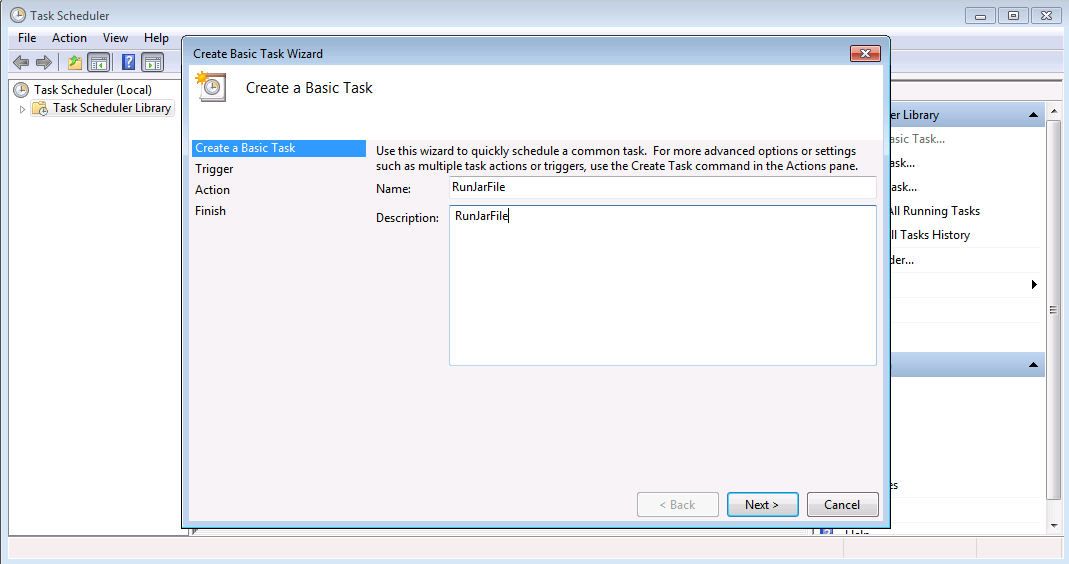
GO to Start menu -> All programs -> Accessories -> System Tolls -> Task Scheduler1- Create a Basic Task
Give name as: RunJarFileDescription: RunJarFile
2- Trigger:
Select radio button as Run One Time.Wants to execute this Jar file only one time.


3- Action:
Select Start a Program option from below.

4- Finish:

Finally Select finish button & Enjoy.
CLASSPATH
D:\Avinash\BatchFile\bin\batch;D:\Program Files\Java\jre1.8.0_51\lib;D:\Program Files\Java\jdk1.8.0_31\lib;E:\Avinashh;
JAVA_HOME
D:\Program Files\Java\jre1.8.0_31;D:\Program Files\Java\jdk1.8.0_31\bin;
PATH
D:\Users\General\Downloads\IEDriverServer_Win32_2.44.0\IEDriverServer.exe;D:\Program Files\Java\jdk1.8.0_31\bin;G:\Java\JUnit\junit_4_10_jar\junit-4.10.jar;E:\Avinashh
Subscribe to:
Posts (Atom)