Sunday, 7 June 2015

Upload file in Selenium WebDriver in java using Robot Class


In this  example the selenium is not it self capable to handling the "Choose File" button which is located on link: http://my.naukri.com/manager/createacc2.php?othersrcp=11499&wExp=N

So we can use Point Position Tool to read the X & Y coordinate of "choose file" button. Then we will pass these X & Y coordinate to Robot Class in java & remaining  part will taken care by Robot class.

To Download Point Position toll click on: http://freewareapp.com/point-position_download/ this click.


Requirements:


  • Eclipse IDE
  • JUnit
  • Selenium Standlone_2.40.0_server.jar
  • Point Position Tool / Software

First we use the Point position Tool to compute the X & Y coordinate of "Choose file" button. Because  selenium WebDriver is not capable to handle this button or even identify. Because  its attribute type="file".

See the screenshot of it.


below is the screen shot for How to use the Point Position tool. To compute X & Y coordinate of choose File button on Naukri portal.

See Screen shot for It.

Next:

Open Eclipse IDE
Create a java Project
Create a package under the SRC Folder
Create a TestCase under the package
Write the below code in currently created TestCase.

Code:


package naukri;

import static org.junit.Assert.*;

import java.awt.Robot;
import java.awt.Toolkit;
import java.awt.datatransfer.StringSelection;
import java.awt.event.InputEvent;
import java.awt.event.KeyEvent;
import java.io.File;
import java.util.concurrent.TimeUnit;

import org.junit.After;
import org.junit.Before;
import org.junit.Test;
import org.openqa.selenium.By;
import org.openqa.selenium.JavascriptExecutor;
import org.openqa.selenium.Point;
import org.openqa.selenium.WebDriver;
import org.openqa.selenium.WebElement;
import org.openqa.selenium.chrome.ChromeDriver;
import org.openqa.selenium.chrome.ChromeOptions;
import org.openqa.selenium.firefox.FirefoxBinary;
import org.openqa.selenium.firefox.FirefoxDriver;
import org.openqa.selenium.ie.InternetExplorerDriver;
import org.openqa.selenium.interactions.Actions;
import org.openqa.selenium.remote.DesiredCapabilities;
import org.openqa.selenium.server.browserlaunchers.FirefoxLauncher;
import org.openqa.selenium.support.ui.ExpectedConditions;
import org.openqa.selenium.support.ui.WebDriverWait;

public class FileUploadOnNaukri 
{
WebDriver driver = null;
WebElement element = null;
    
        Robot robot = null;
int x = 0;
int y= 0;
@Before
public void setUp()
{
File file = new File("G:\\Selenium\\All_Jars\\chromeDriver.exe");
System.setProperty("webdriver.chrome.driver", file.getAbsolutePath());
driver = new ChromeDriver();
driver.manage().window().maximize();
}
@Test
public void testChooseFileButton() throws Exception
{
driver.get("http://my.naukri.com/manager/createacc2.php?othersrcp=11499&wExp=N");
Thread.sleep(5000);
((JavascriptExecutor)driver).executeScript("window.scrollTo(0,700);");
robot = new Robot();
x = 529;  // X coordinates of choosefile control,Values read from Point Position tool 
y = 339;  // v coordinates of choosefile control,Values read from Point Position tool
robot.mouseMove(x, y);
robot.mousePress(InputEvent.BUTTON1_DOWN_MASK);
robot.mouseRelease(InputEvent.BUTTON1_DOWN_MASK);
robot.mousePress(InputEvent.BUTTON1_DOWN_MASK);
robot.mouseRelease(InputEvent.BUTTON1_DOWN_MASK);
robot = null;
Thread.sleep(5000);
//copy the file path in clipboard
StringSelection ss = new StringSelection("d:\\Avinash.jpg");
        Toolkit.getDefaultToolkit().getSystemClipboard().setContents(ss,null);
   
        robot = new Robot();
robot.keyPress(KeyEvent.VK_ENTER); //Press Enter key in file name text box
robot.keyRelease(KeyEvent.VK_ENTER); // Release Enter key
                robot.keyPress(KeyEvent.VK_CONTROL); // Press Control Key
                robot.keyPress(KeyEvent.VK_V);       // Press V- button i.e. paste
                robot.keyRelease(KeyEvent.VK_V);     // Release V- Key 
                robot.keyRelease(KeyEvent.VK_CONTROL); //Release Control Key 
                robot.keyPress(KeyEvent.VK_ENTER);     // Press final Enter Key
                robot.keyRelease(KeyEvent.VK_ENTER);   //Release Enter Key
        Thread.sleep(7000);
}
        @After
public void tearDown()
{
driver.close();
element = null;
}
}

Upload File Using Selenium WebdDriver in Java using AutoIt

Prerequisite:


  1. Eclipse IDE
  2. Point Position Tool
  3. Autoit V3
  4. AutoIt window info


Selenium is not able to identify the element or "Browse" button to click.
Example:
                 <input name="BROWSECV" id="browsecv" size="37"> </input>
or

 you can go to below link and inspect the browse button.
            Link:      http://my.naukri.com/manager/createacc2.php?othersrcp=11499&wExp=N

or see the screen shot to know more


To handle such situation in Selenium we have to use third Party Tools such as Point Position, Autoit etc...


Below is the example to handle above "Browse" button from above link.

First we can create a file in Autoit v3 to handle browse button.
open the SCiETE Script Editor
write the below code into it.

Code:
ControlFocus("Open","","Edit1")
ControlSetText("Open","","Edit1","D:\Avinash\FileUpload.txt")
ControlClick("Open","","Button1")


  • Save above file named as - NaukriFileUpload.au3
  • Go to file stored location and compile it.
  • it will produces the NaukriFileUpload.exe


The parameters name "Open", "Edit1" , "Button1" in above code has been inspect it by using Autoit Window info tool.
We drag The option "Finder tool" from Autoit window info to "File Name" text box then "open" button to read Title. class &Instance parameter  information of each control on OpenfileDialog Window popup.
because we need these parameter information to AutoIt functions such as ControlFocus, ControlSettext etc...

See below screen shot to know more details:


Next:

Point Position:
     we use point position tool to identify the X & Y coordinate of Browse button from Naukri.com or above link.
then we will click it on that X,Y coordinate by using javas robot class.

See the screen shot, how to use Point Position tool


Next:   

    Open Eclipse IDE
    Create a Java project
    Create a package under Src folder.
    Create a Testcase
write the below code in that TestCase

package fileupload;
import static org.junit.Assert.*;
import java.awt.AWTException;
import java.awt.Robot;
import java.awt.event.InputEvent;
import java.io.File;
import java.io.IOException;
import org.junit.After;
import org.junit.Before;
import org.junit.Test;
import org.openqa.selenium.JavascriptExecutor;
import org.openqa.selenium.WebDriver;
import org.openqa.selenium.WebElement;
import org.openqa.selenium.chrome.ChromeDriver;
import org.openqa.selenium.chrome.ChromeOptions;
import org.openqa.selenium.firefox.FirefoxDriver;

public class FileUpload 
{
WebDriver driver = null;
WebElement element = null;
JavascriptExecutor js = null;

@Before
public void setUp() throws Exception 
{
driver = new FirefoxDriver();
driver.manage().window().maximize();
}

@Test
public void test() throws AWTException, InterruptedException, IOException 
{
driver.get("http://my.naukri.com/manager/createacc2.php?othersrcp=5424&wExp=N&id=");
Thread.sleep(5000);
((JavascriptExecutor)driver).executeScript("window.scrollTo(0,700)");

int x = 537;
int y = 331;

Robot r = new Robot();

r.mouseMove(x, y);
r.mousePress(InputEvent.BUTTON1_DOWN_MASK);
r.mouseRelease(InputEvent.BUTTON1_DOWN_MASK);

r.mouseMove(545, 345);
r.mousePress(InputEvent.BUTTON1_DOWN_MASK);
r.mouseRelease(InputEvent.BUTTON1_DOWN_MASK);
Thread.sleep(3000);
Runtime.getRuntime().exec("G:\\Autoit\\NaukriFileUpload.exe");

}

@After
public void tearDown() throws Exception 
{
driver.close();
element = null;
}

}


See Also Below Links:


Upload a file using selenium web driver in c#

        selenium can not identify the Input tag having attribute as file. Also selenium is not able to handle windows popup like Open File Dialog.
Ex: 
<input type="file" id="browse1" name="browse"> </file>
So To handle such kind of situation in selenium we have to use third party tools like Autoit, Point Position etc....

Prerequisite/Requirements:

  1. Visual Studio

  2. NUnit: Testing Framework.

  3. Point Position software / Tool: To find the X and Y coordinate of "Browse" Button.    

    point Position Tool: download it from this link:  http://freewareapp.com/point-position_download/

    Point Position Tool:
        It is used to to find the x & y coordinate of any control with respect to scree resolution.
        It has four corner keep any corner on button or any control whose x & Y coordinates you want to   find and click it on corner. it will shows the x and y coordinate of it. 
    see in below screen shot.
    It shows the x & Y coordinate of Open button by using Point Position Tool which is present of OpenFileDialog Window. 


    using System;
    using NUnit.Framework;
    using OpenQA.Selenium.Chrome;
    using OpenQA.Selenium.Firefox;
    using OpenQA.Selenium;
    using OpenQA.Selenium.Support.UI;
    using OpenQA.Selenium.Support;
    using System.Threading;
    using System.Windows;
    using System.Windows.Forms;
    using System.Runtime.InteropServices;
    using System.IO;

    namespace
    UploadingFileOnNaukri
    {
        [TestFixture]   
        public class UploadingFile

        {
            IWebDriver driver = null ;
            IWebElement element = null ;
            ChromeOptions options = null ;
          
            [SetUp]
            public void SetUp()

            {
                options = new ChromeOptions();
                options.AddArgument( " start-maximized " );
                driver = new ChromeDriver("G:\\Selenium_Csharp\\Jar\\chromedriver_win32", options);
                driver.Navigate().GoToUrl("http://my.naukri.com/manager/createacc2.php?othersrcp=11499&wExp=N");
            }

            [Test]
            public void TestUploadingFileMethod()

            {
                Thread.Sleep(300);
                ((IJavaScriptExecutor)driver).ExecuteScript(" window.scrollTo(0,600) ; " ) ;
               
                //explicitly write the X , Y coordinate of Browse button on Naukri by using Point Position Tool.
                Thread.Sleep(5000);
                int x = 529;
                int y = 339;
                MouseEvents.LeftMouseClick(x, y);
               
                MouseEvents.LeftMouseClick(x, y);
                Thread.Sleep(2000);

                //click on d-drive
                MouseEvents.LeftMouseClick(491, 401);
               
                //click on Avinash folder which is present in D:\ drive.
                Thread.Sleep(3000);
                MouseEvents.LeftMouseClick(616, 243);

                //click on Open button of File Dialog
                Thread.Sleep(3000);
                MouseEvents.LeftMouseClick(886,552);

                //Now select the file name FileUpload.txt
                Thread.Sleep(3000);
                MouseEvents.LeftMouseClick(623,241);

                //Now finally click on open Button to open / upload the selected file.
                Thread.Sleep(3000);
                MouseEvents.LeftMouseClick(886,552);
                Thread.Sleep(7000);
               
            }

            [TearDown]
            public void TearDown()
            {
                element = null;
                driver.Quit();
            }
        }
    }


    Add another File in existing project
    Right Click on project -> Add new class -> Name as MouseEvents.cs
    Write the below code into it:

    using System;
    using System.Collections.Generic;
    using System.Linq;
    using System.Text;
    using System.Threading.Tasks;
    using System.Windows.Forms;
    using System.Drawing;


    namespace UploadingFileOnNaukri
    {
        class MouseEvents
        {
            private const UInt32 MOUSEEVENTF_LEFTDOWN = 0x0002;
            private const UInt32 MOUSEEVENTF_LEFTUP = 0x0004;
            [System.Runtime.InteropServices.DllImport("user32.dll")]
            private static extern void mouse_event(uint dwFlags, uint dx, uint dy, uint dwData, uint dwExtraInf);


            public static void LeftMouseClick(int xpos, int ypos)
            {
                int x = Convert.ToInt16(xpos) ;   //set x position
                int y = Convert.ToInt16(ypos) ;  //set y position
                Cursor.Position = new Point( x ,  y ) ;
                mouse_event(MOUSEEVENTF_LEFTDOWN, 0, 0, 0, 0) ; //make left button down
                mouse_event(MOUSEEVENTF_LEFTUP, 0, 0, 0, 0) ; //make left button up

            }
        }
    }


    See Also Below Links:


Upload a file using selenium web driver in c#

 Upload a file using selenium web driver in c#

        selenium can not identify the Input tag having attribute as file. Also selenium is not able to handle windows popup like Open File Dialog.
Ex: 
<input type="file" id="browse1" name="browse"> </file>
So To handle such kind of situation in selenium we have to use third party tools like Autoit, Point Position etc....

Prerequisite/Requirements:

  1. Visual Studio

  2. NUnit: Testing Framework.

  3. Autoit V3: To Handle Windows OpenfileDialog.

  4. Point Position software / Tool: to find the X and y coordinate of "Browse" Button.    

  1. procedure:

    1. Run visual Studio
    2. Select Test under project Template
    3. Select UnitTest  from right window
    4. Ex: select File->New->project->select Test -> under that select Unit Test Project.
    5. Give the project name as "UploadingFileOnNaukri"
    6. Under Solution / Project select References -> Right click it on it->add WebDriver.dll and webDriver.Support.dll
    7. Add another Reference to project "System.Windows.Forms"
    8. Add another Reference to project "System.Drawing"


Remove Namespace named "using Microsoft.VisualStudio.TestTools.UnitTesting"
Remove attribute "TestClass" and "TestMethod" from class and method.
Add Namespace Named as  using NUnit.Framework;
Add Namespace using OpenQA.Selenium.Firefox;
Add Namespace using OpenQA.Selenium.Support.UI;
Add Namespace using OpenQA.Selenium;
Add Namespace using System.Windows.Forms;
Add Namespace using System.Drawing;
Add Namespace using System.Threading;
Add Namespace using System.Diagnostics; 


Lets consider I want to upload a file which is present on D:\Avinash\Fileupload.txt.

Code :

using System;
using OpenQA.Selenium;
using OpenQA.Selenium.Chrome;
using OpenQA.Selenium.Firefox;
using OpenQA.Selenium.Support.UI;
using NUnit.Framework;
using System.Threading;
using System.Diagnostics;

namespace UploadingFileOnNaukri
{
    [TestFixture]
    public class FileUpload
    {

        IWebDriver driver = null;
        IWebElement element = null;
        int xCoordinate = 0;
        int yCoordinate = 0;
   
        [SetUp]
        public void SetUp()
        {
           
ChromeOptions options = new ChromeOptions();
            options.AddArgument("start-maximized");
            driver = new ChromeDriver("G:\\Selenium_Csharp\\Jar\\chromedriver_win32", options);
        }

        [Test]
        public void TestFileUpload()
        {

            driver.Navigate().GoToUrl("http://my.naukri.com/manager/createacc2.php?othersrcp=11499&wExp=N");
            Thread.Sleep(300);
            ((IJavaScriptExecutor)driver).ExecuteScript("window.scrollTo(0,600);");
            Thread.Sleep(5000);
            xCoordinate = 537;
            yCoordinate = 331;      
            
            MouseEvents.LeftMouseClick(xCoordinate,yCoordinate);
            xCoordinate = 545;
            yCoordinate = 345;
            MouseEvents.LeftMouseClick(xCoordinate,yCoordinate);
            Thread.Sleep(6000);
            Process.Start("G:\\Autoit\\NaukriFileUpload.exe");
            Thread.Sleep(10000);


        }

        [TearDown]
        public void TearDown()
        {
            element = null;
            driver.Quit();
        }
    }
}


Note:
  1. Add another Class names as "MouseEvents.cs" in current project.
  2. It handles the mouse click event by using C# low level Handle.

Select project -> Right click -> Add new Class -> Give Name as "MouseEvents.cs"

code:

using System;
using System.Collections.Generic;
using System.Linq;
using System.Text;
using System.Threading.Tasks;
using System.Windows.Forms;
using System.Drawing;

namespace UploadingFileOnNaukri
{
    class MouseEvents
    {
       
private const UInt32 MOUSEEVENTF_LEFTDOWN = 0x0002;
        private const UInt32 MOUSEEVENTF_LEFTUP = 0x0004;

        [System.Runtime.InteropServices.DllImport("user32.dll")]
       
private static extern void mouse_event(uint dwFlags, uint dx, uint dy, uint dwData, uint dwExtraInf);

        public static void LeftMouseClick(int xpos, int ypos)
        {
           
int x = Convert.ToInt16(xpos);  //set x position
            int y = Convert.ToInt16(ypos);  //set y position
            Cursor.Position = new Point(x, y);
            mouse_event(MOUSEEVENTF_LEFTDOWN, 0, 0, 0, 0);  //make left button down
            mouse_event(MOUSEEVENTF_LEFTUP, 0, 0, 0, 0);  //make left button up

        }
    }
}


Note: 
Download the Autoit Testing tool i.e. autoitau3
Install it.
open  the SCiTE Script Editor.
open the Autoit V3 Window info 


SCite Script Editor: 

  •        It is used to write the script to handle windows open file dialog.
  •        It will select the file to be Uploaded from the given file path.
  •        it will upload the selected file by pressing "Open" button on fileDialog.

AutoIt V3 Window Info:

  •       It is used to Identify the parameter or information of text box and open button on Filedialog.
  •       It will gives the information of parameters like Title of FileDialog , class, Id of each control on a   OpenFileDialog.


Code in autoit:

  1. Open SCiTE Script Editor.
  2. Write below code:

ControlFocus("Open", "", "Edit1")
ControlSetText("Open", "", "Edit1", "D:\Avinash\FileUpload.txt")
ControlClick("Open", "", "Button1")


Save file as FileUpload.au3

Go to that file where above file is saved and right Click on it-> select Compile -> creates FileUpload.exe file.

Screen Shot to identify the above parameters like- "open"  , "Edit1"  , "Button1"  .


See Also Below Links:


Thursday, 4 June 2015

Taking Screen Shot of a page By using selenium Webdriver With NUnit and C#.Net in Visual Studio-2012.

Taking Screen Shot of a page  By using selenium Webdriver With NUnit and C#.Net in Visual Studio-2012.

  1. create / select a Unit Test project from existing template under test option.
  2. Remove the name space - using Microsoft.VisualStudio.TestTools.UnitTesting; from your class/test.
  3. Add the  name space in your test/class  using NUnit.Framework;
  4. Add the  name space in your test/class  using OpenQA.Selenium;
  5. Add the  name space in your test/class  using OpenQA.Selenium.Chrome;
  6. Add the  name space in your test/class  using OpenQA.Selenium.Support.UI;
  7. Add the reference of System.Drawing by right click on References of your project.
  8. Add the name space in your test/class  using OpenQA.Selenium;s
  
Below is the code to take the screen shot of Facebook Home page.


using System;
using OpenQA.Selenium;
using OpenQA.Selenium.Chrome;
using OpenQA.Selenium.Support.UI;
using NUnit.Framework;
using System.IO;
using System.Collections;
using System.Drawing.Imaging;

namespace FacebookRegistrationUsingC_Sharp
{
    [TestFixture]
    public class ScreenShot
    {
       
IWebDriver driver = null;
        IWebElement element = null;

        [SetUp]
        public void SetUp()
        {

            driver = new ChromeDriver("G:\\Selenium_Csharp\\Jar\\chromedriver_win32");          
            driver.Navigate().GoToUrl("https://www.Facebook.com");
            driver.Manage().Window.Maximize();
        }


        [Test]
        public void TestScreenShot()
        {          
          

            Screenshot ss = ((ITakesScreenshot)driver).GetScreenshot();
            ss.SaveAsFile("e:\\AvinashPande.jpeg", System.Drawing.Imaging.ImageFormat.Jpeg);
        }

        [TearDown]
        public void TearDown()
        {
           
driver = null;
            element = null;
        }
    }
}


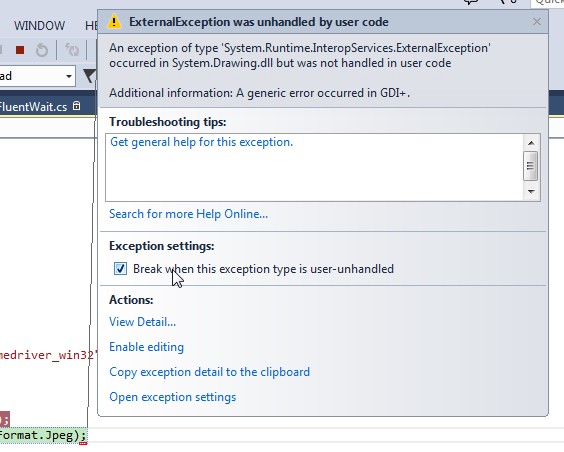
Here the chance to get an error: A generic error occurred in GDI+.


following Precaution to needs to be taken:
  1. You should not store the file on a drive on which operating system has been already installed.
  2. you should give the name other than the file which has been present already in that folder in which current file in storing .  


See Also Below Links:


click